
Create a custom table to store products from Google Shopping to target recipient based on shopping behavior and send marketing communications with Product data such as Image, Title and Price!
💲📥🌍
Schema, form and navigation creation
Data Schema fco:productExtensions
Schema with basic fields (string, memo [can contain XML/HTML], long)
<srcSchema entitySchema="xtk:srcSchema" img="xtk:schema.png" label="Product Extensions"
           mappingType="sql" name="productExtension" namespace="fco" xtkschema="xtk:srcSchema">
  <element autopk="true" label="Product Extensions" labelSingular="Product Extension" name="productExtension">
    <!-- Key -->
    <key>
      <keyfield xpath="@code"/>
    </key>
    <!-- Codes -->
    <attribute label="Code" name="code" type="string"/>
    <!-- Fields -->
    <attribute label="Title" name="title" type="string"/>
    <attribute label="Description" name="description" type="memo"/>
    <attribute label="Product Page URL" length="500" name="productPageUrl" type="string"/>
    <attribute label="Product Image URL" length="500" name="imageUrl" type="string"/>
    <attribute label="Availability" name="availability" type="string"/>
    <attribute label="Price" length="10" name="price" type="string"/>
    <attribute label="Product Category (Google)" name="googleCategory" type="string"/>
    <attribute label="Product type" name="type" type="string"/>
    <attribute label="Brand" name="brand" type="string"/>
    <attribute label="GTIN" name="gtin" type="string"/>
    <attribute label="MPN" name="mpn" type="string"/>
    <!-- Technical -->
    <element aggregate="xtk:common:auditTrail" name="auditTrail"/>
  </element>
</srcSchema>
Input form fco:productExtensions
To create and edit records.
<form entitySchema="xtk:form" img="xtk:form.png" label="productExtension" name="productExtension"
      namespace="fco" xtkschema="xtk:form">
  <container colcount="2">
    <container>
      <input xpath="@code"/>
      <input xpath="@title"/>
      <input xpath="@gtin"/>
      <input xpath="@mpn"/>
      <input xpath="@price"/>
      <input xpath="@productPageUrl"/>
      <input xpath="@googleCategory"/>
      <input xpath="@type"/>
      <input xpath="@description"/>
      <input xpath="@created"/>
      <input xpath="@lastModified"/>
    </container>
    <container label="Preview">
      <input forceNavigate="true" type="urlViewer" urlExpr="@imageUrl"/>
    </container>
  </container>
</form>
Navigation Hierarchy fco:core
To add a folder in the Navigation Tree.
<navtree entitySchema="xtk:navtree" img="nl:folders.png" label="core" name="core"
         namespace="fco" xtkschema="xtk:navtree">
  <model name="root">
    <model label="Custom" name="custom">
      <nodeModel img="nms:webformmodel.png" name="refProductExtension">
        <view img="nms:webformmodel.png" label="Product Extensions" name="listdet" schema="fco:productExtension" type="listdet">
          <columns>
            <node xpath="@code"/>
            <node xpath="@title"/>
            <node xpath="@gtin"/>
            <node xpath="@mpn"/>
            <node xpath="@created"/>
          </columns>
        </view>
      </nodeModel>

    </model>
  </model>
</navtree>
Recap
Update SQL database with Tools > Advanced > Update database structure.
Disconnect, Reconnect. No need to clear the cache.
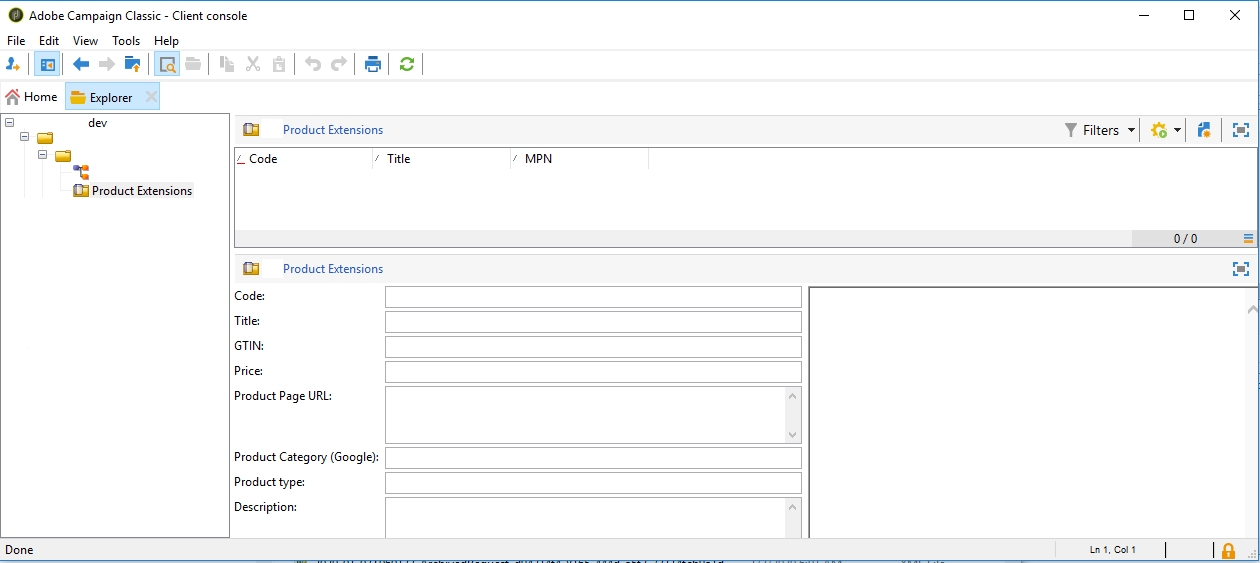
Create a new “Products” folder:
Import products from XML Web Feed
Test with Sample XML from https://raw.githubusercontent.com/darkslategrey/cd/master/fr_eur_googlebase.xml.
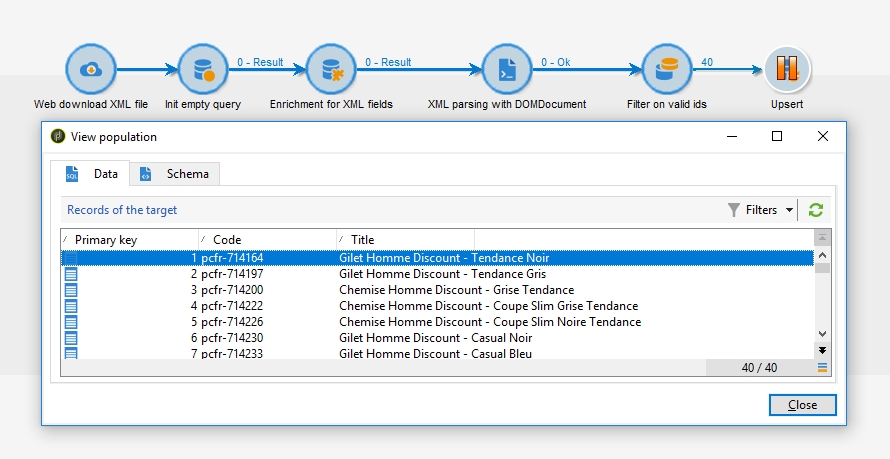
- Download XML to local ACC [Web Download activity]
- Init empty query for workflow [Query activity]
- Add columns corresponding to XML fields [Enrichment activity]
- Fill in columns from XML data with JavaScript DOMDocument standard lib [JavaScript activity]
- Keep only valid records (add any business rules / filtering) [Split activity]
- Update/insert into ACC [Update Data activity]
Overview:
Details:
- Set URL to
https://raw.githubusercontent.com/darkslategrey/cd/master/fr_eur_googlebase.xml - Set schema to
fco:productExtensionsand condition to@id > 0 - Add 2 custom string fields
@codeand@titlewith expression''

- Set JS code to
var xmlDoc = DOMDocument.load(vars.filename); var entries = xmlDoc.getElementsByTagName("item"); entries.forEach(function (entry) { var sql = "INSERT INTO " + vars.tableName + " (iId, sCode, sTitle) " + "VALUES ($(id), $(sz), $(sz))"; var recCount = sqlExec(sql, entry.getValue("g:id"), entry.getValue("title")); }); - Split condition should be
@id is not empty, or any other rule you define - Update with
Record identificationonUsing reconciliation keys>@code = @code
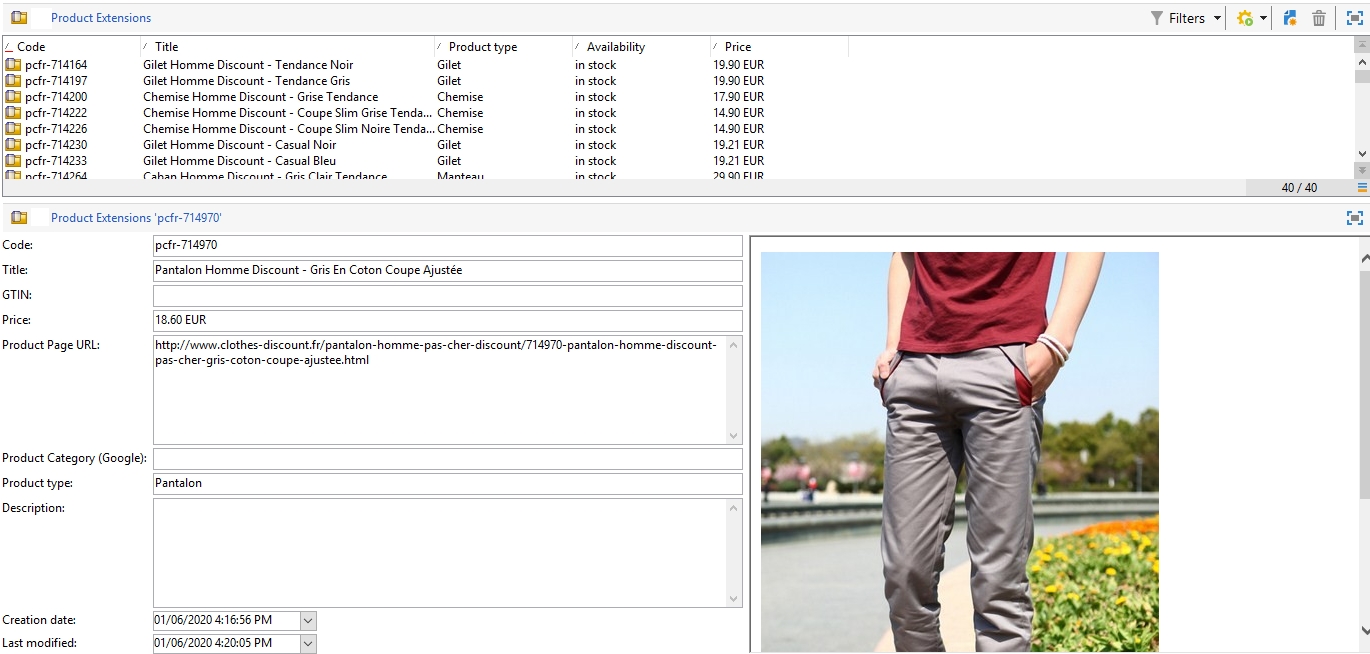
Start and check data:
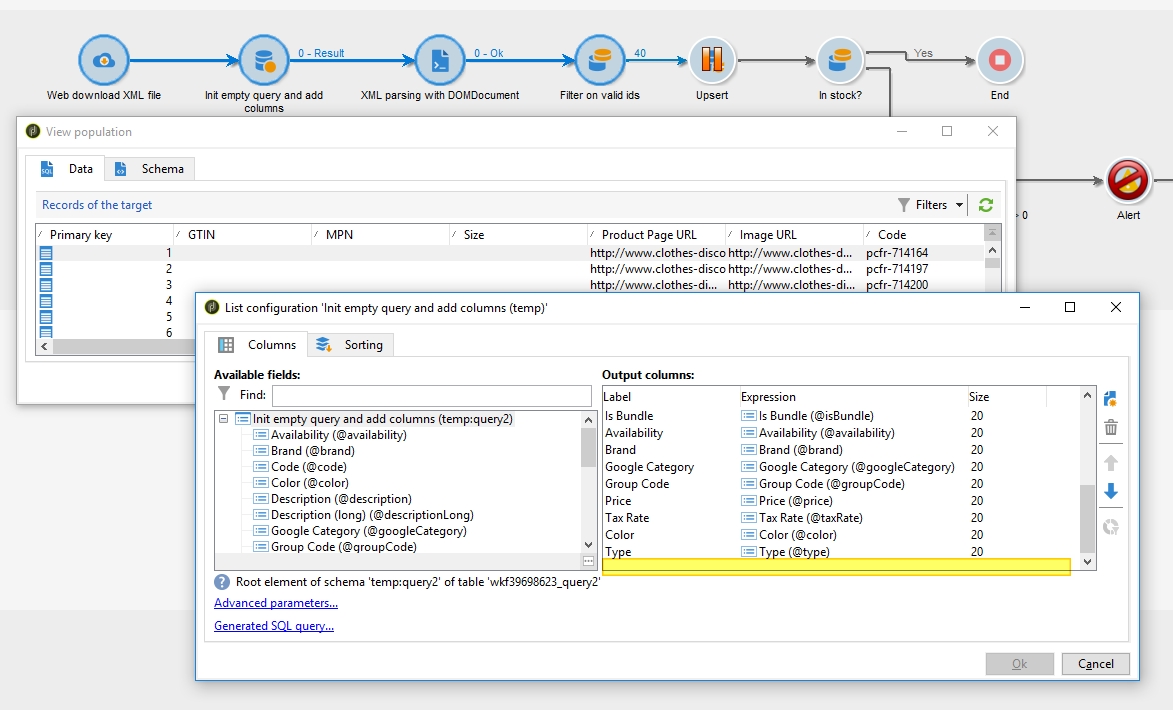
Bug Split shows 40 but Display target is empty
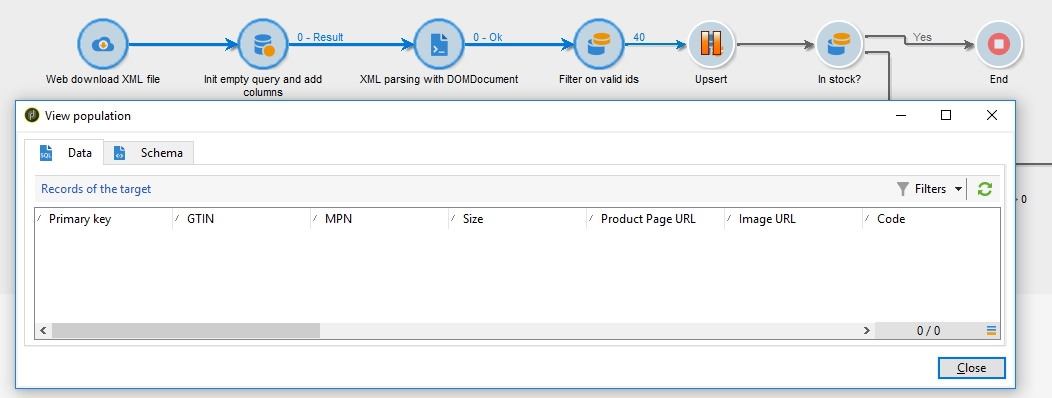
Remove “Targeting dimension” from the Output Columns (last field in the list):
Going further
- Combine Query and Enrichment into 1 Query with
Additional Data - Trigger different behaviour based on availability (in/out of stock) with Alert
- Add all fields
- Convert prices to float
Download workflow full version.