
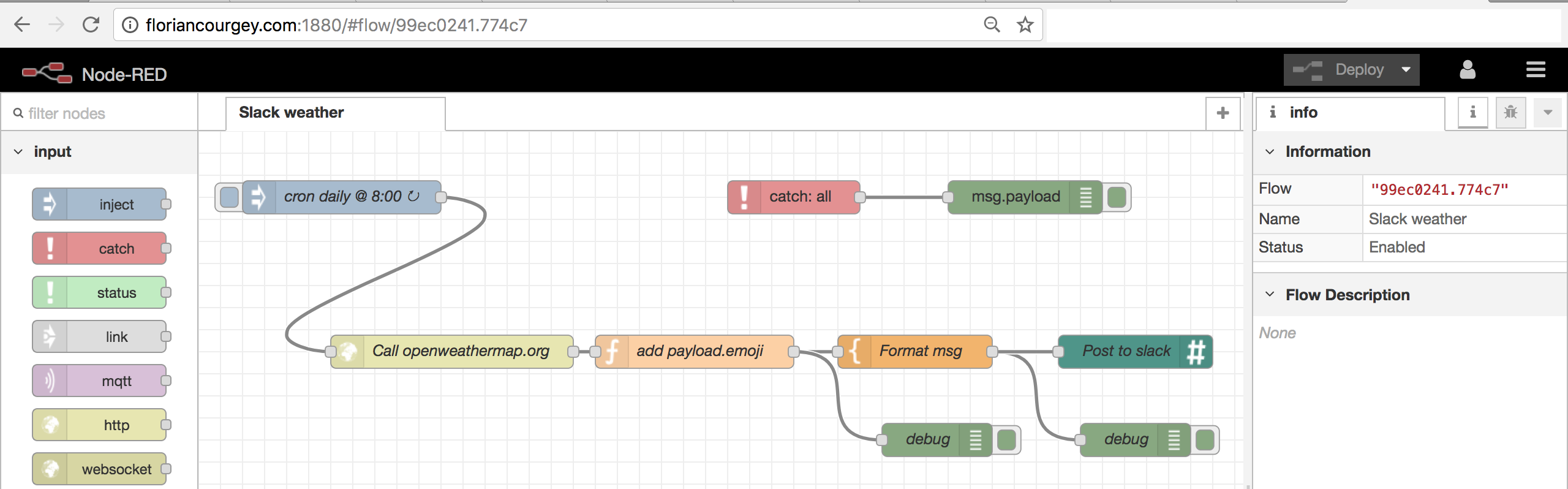
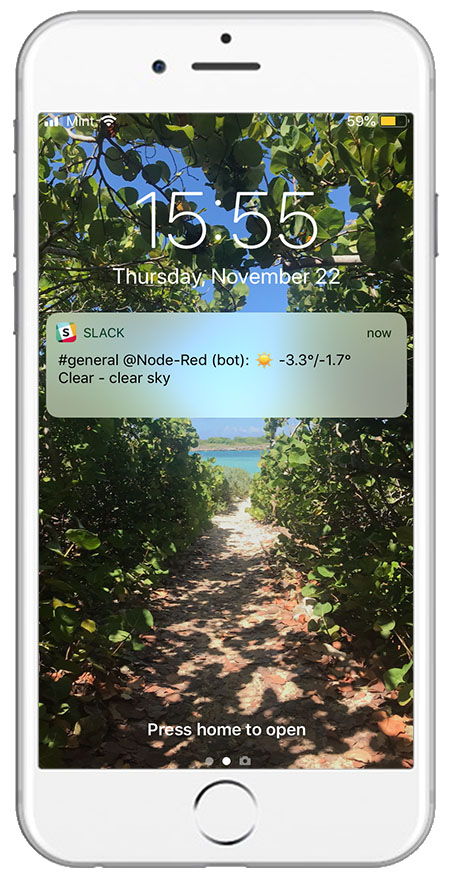
We’ll cover a simple example of sending a slack message every morning to get the day weather’s forecast: min-max temp and an emoji depicting what the sky will be like, using OpenWeatherMap free API.
Using Node-RED, an automation tool based on a visual interface, the bot is built with 0 code (or maybe a maximum of 2 lines).
Preparation
Intro
The goal is to create an automated bot that sends weather information every morning on a slack channel with 0 code (or maybe a maximum of 2 lines).
To do so, we’re going to use Node-RED, an automation tool based on a visual interface to query APIs and trigger external tools. See it like a free, highly customizable and self-hosted IFTTT.
Each action is a Node and is connected to another ones/ones with wires.
Install and run
$ node -v # >=  8.x
$ sudo npm install -g --unsafe-perm node-red # install node red globally
$ node-red # will create a ~/.node-red folder to store config & data
Welcome to Node-RED
===================
22 Nov 21:53:17 - [info] Node-RED version: v0.19.5
22 Nov 21:53:17 - [info] Node.js version: v8.12.0
22 Nov 21:53:23 - [info] User directory : /home/florian/.node-red
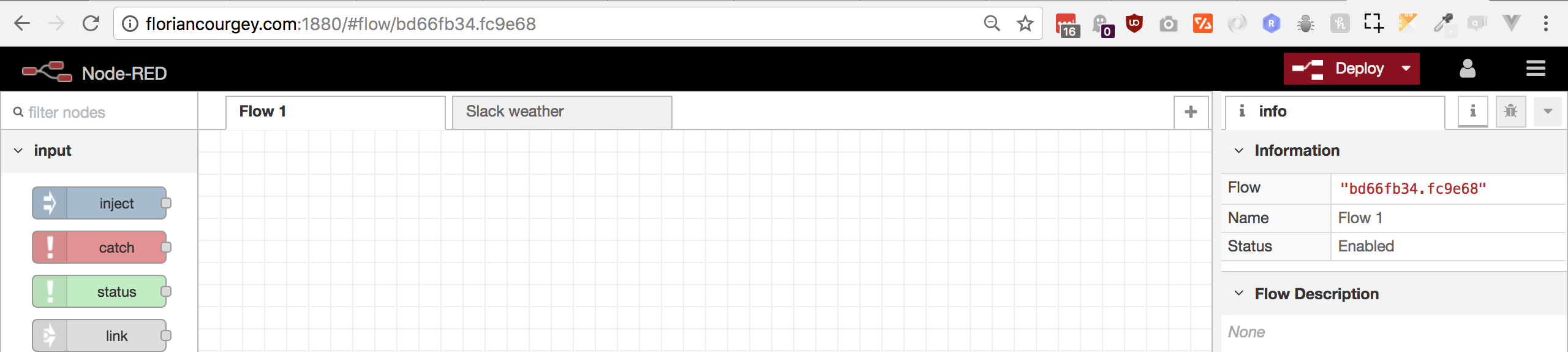
22 Nov 21:53:23 - [info] Server now running at http://127.0.0.1:1880/Go ahead and open http://127.0.0.1:1880/, you’ll have an empty flow open by default:
Walkthrough
Discover
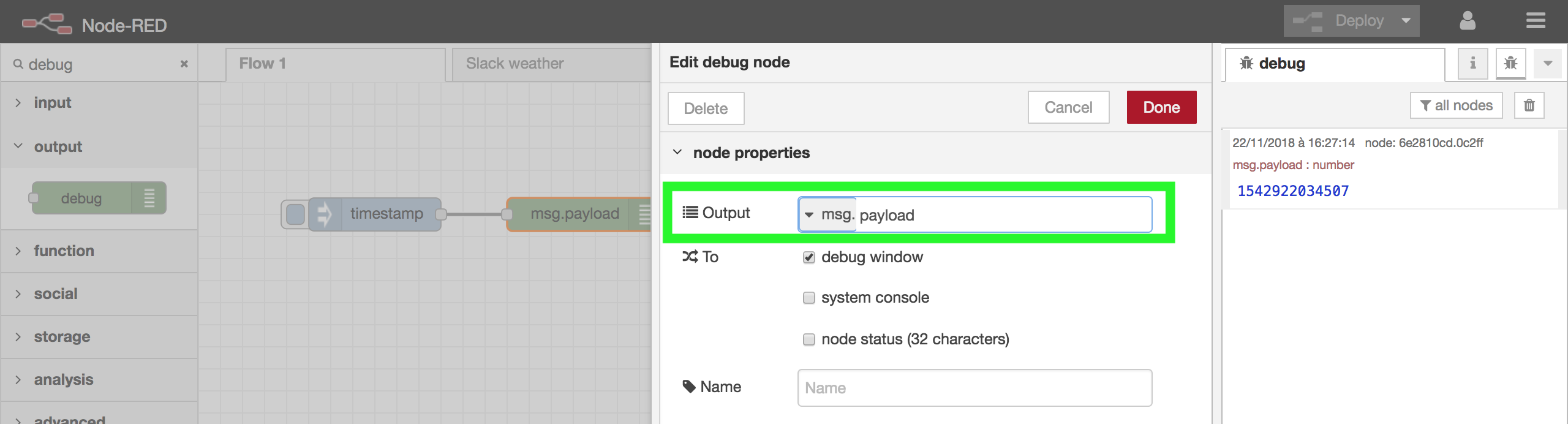
Drag n drop an inject, a debug, connect them together, hit Deploy, click on the blue square on the left of the inject node and open the debug console:

This is the very first step! This is what happened:
-
injectcreates a global Javascrippt objectmsgwith the keypayloadcontaining the actual int timestamp -
injectsends it to theDebug -
debugdisplays in the console the default configured outputmsg.payload
Double-clicking on the Debug node displays the configuration:
Build the weather bot
Connect to Open Weather Map
Create API key on Open Weather Map and use it in the following endpoint:
https://api.openweathermap.org/data/2.5/weather?q=Paris,fr&appid=[APP_ID]&units=metric
Default call for testing https://samples.openweathermap.org/data/2.5/weather?q=London,uk&appid=b6907d289e10d714a6e88b30761fae22
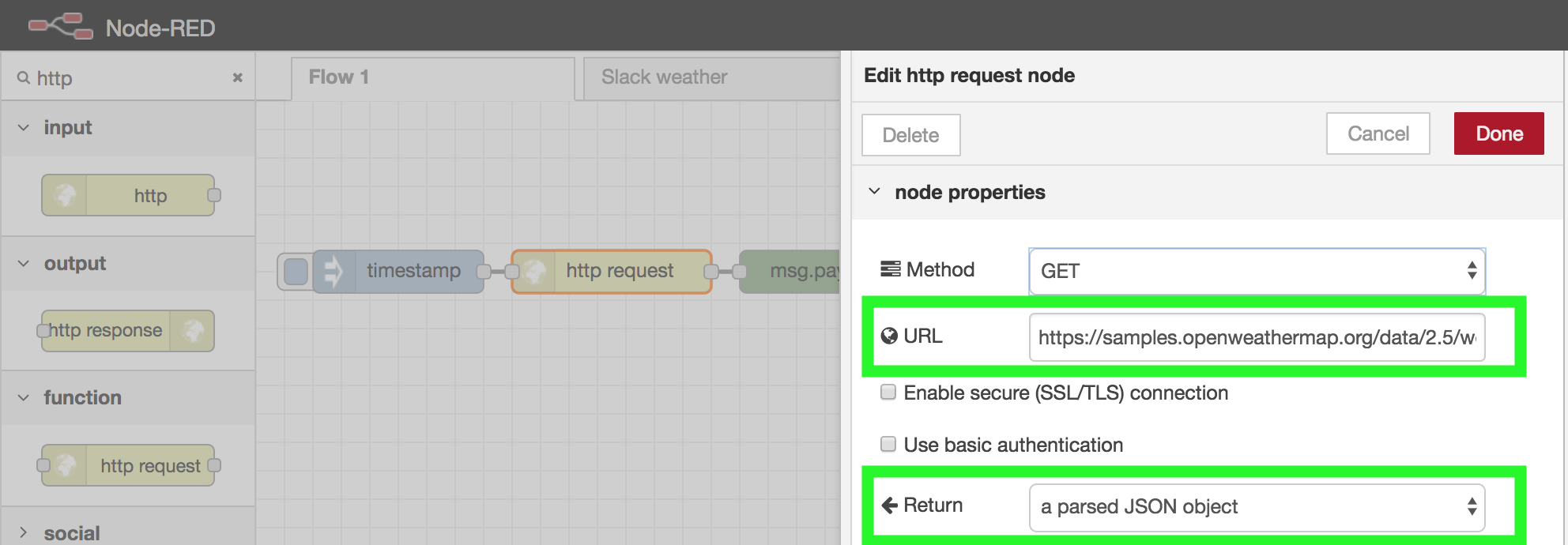
Look for the node http request, set the endpoint and change the return to be a JSON object:
Deploy and run!
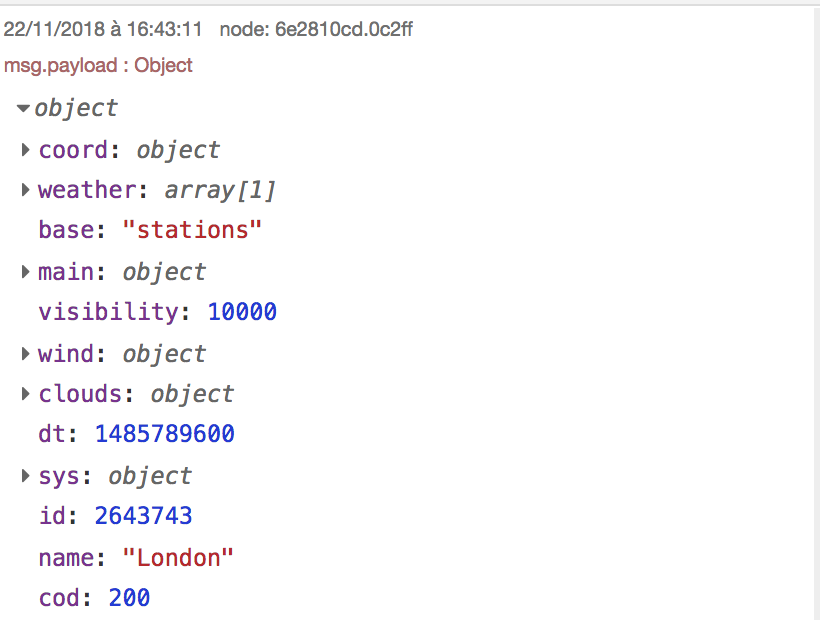
And it took what, 5 min? Sweeet…
Format
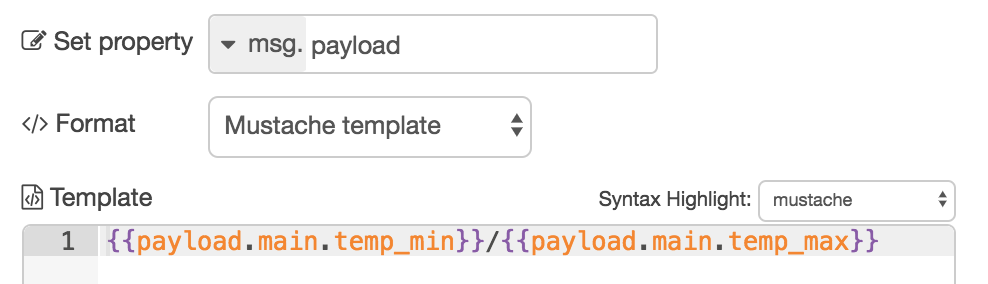
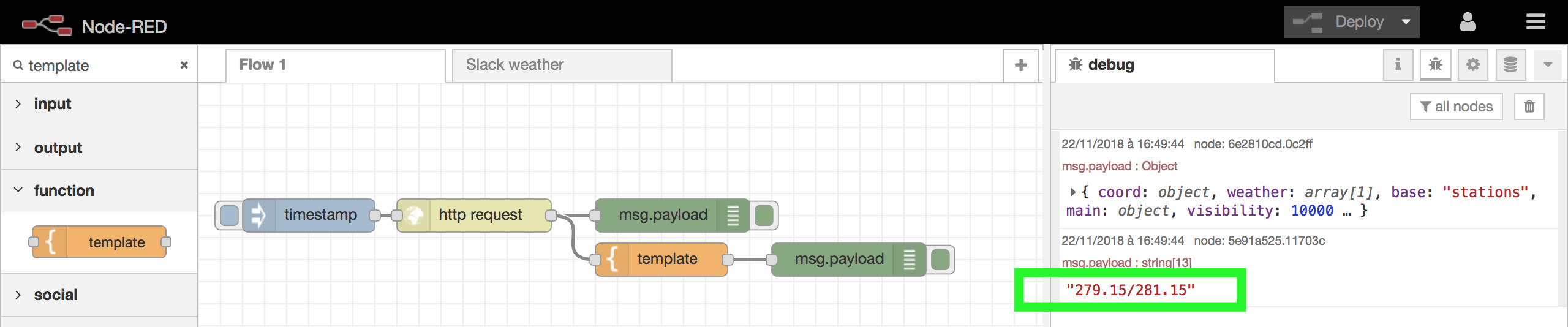
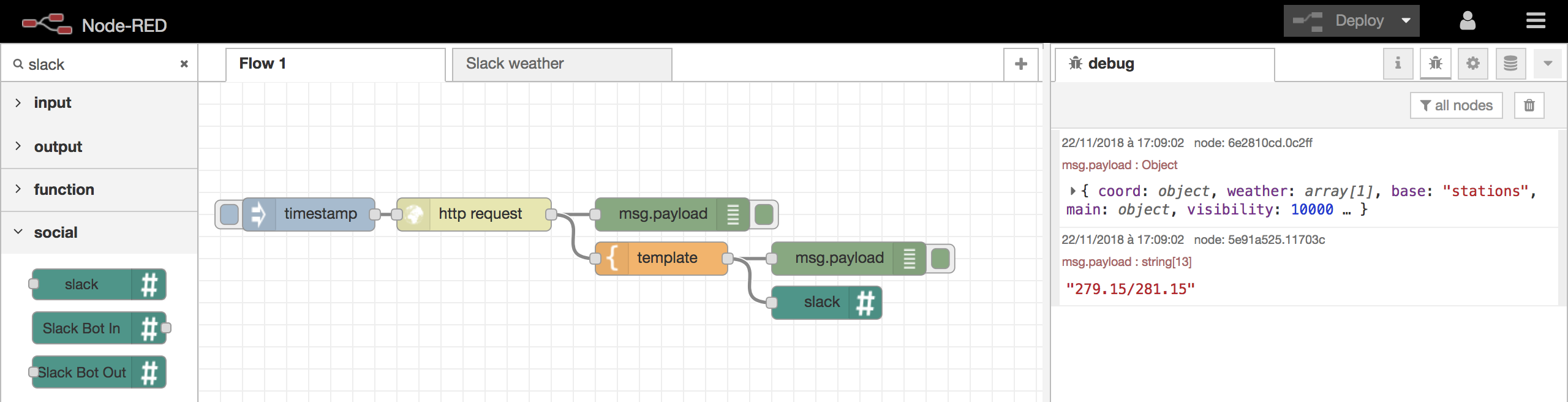
Use the template node a little bit of moustache templating and here we are:
Send to Slack
Install the Node red slack module
npm install node-red-contrib-slackMake sure you have a webhook configured on your slack, i.e. https://my_instance.slack.com/apps/manage/custom-integrations:
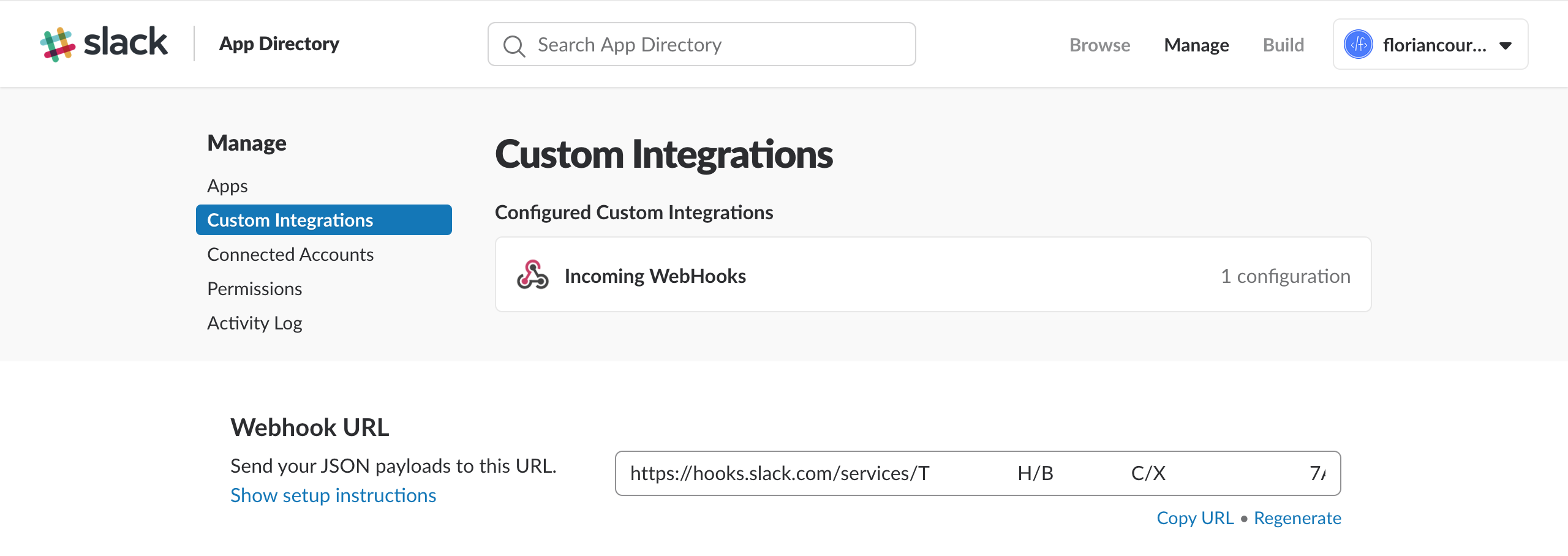
And use the slack node with the correct Webhook URL:
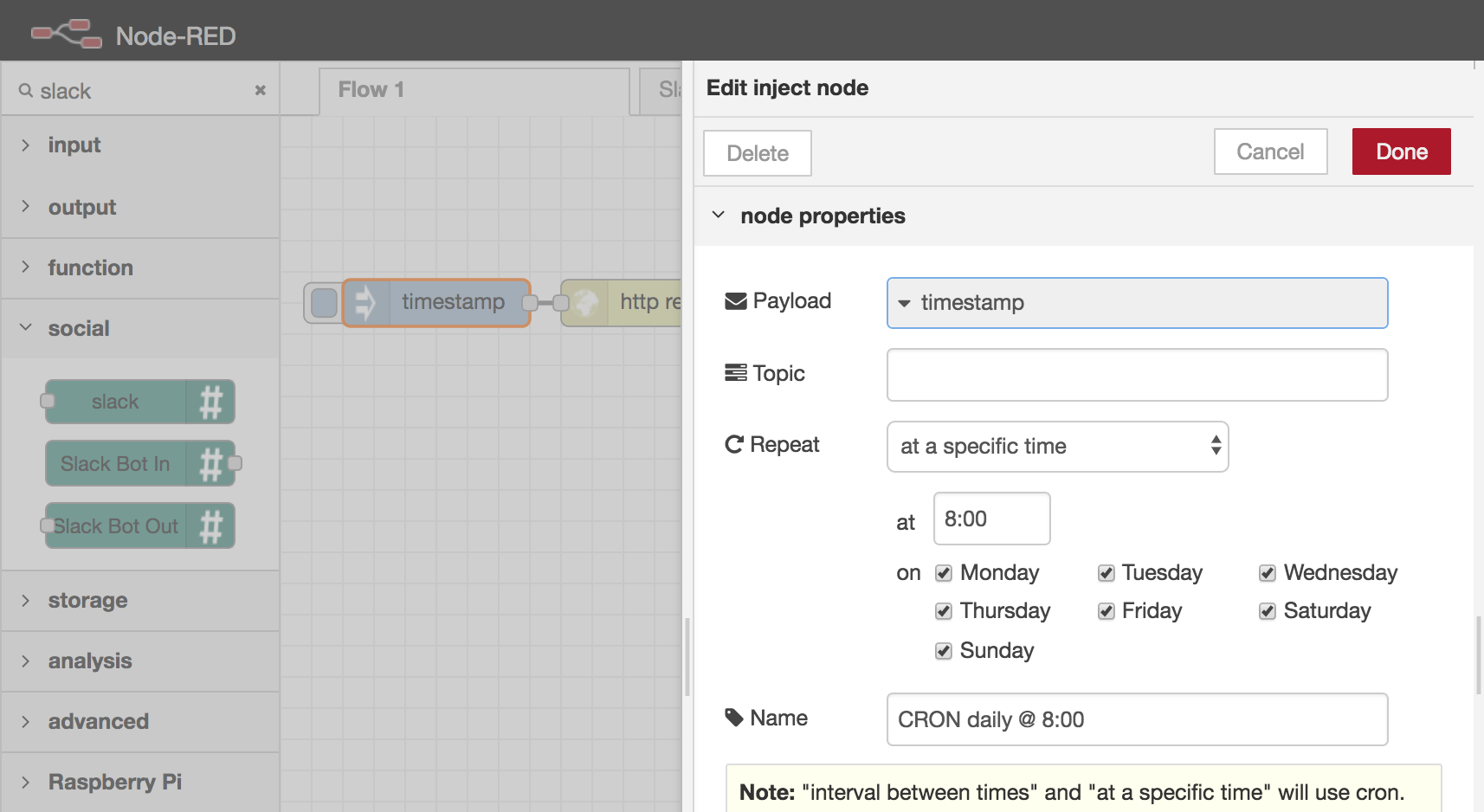
CRON it with Node RED
Think of using it on a daily basis? Node RED has a much easier system than Linux’s CRONs.
Open up the inject node and define the Regular setting.
Going further
You now have a fully working bot sending weather information every morning! Going further: display an emoji based on payload.weather[0].id (see https://openweathermap.org/weather-conditions), connect to your home IoT, your smart mirror…
- Use NodeRed v2 for free on Heroku!: host your own instance for free
- Alteryx Cheatsheet: another tool for data workflows