
XML and JavaScript codes in Adobe Campaign are edited directly in the Client Console: no formatter, no consistent style, no way to review what changed between two developers.
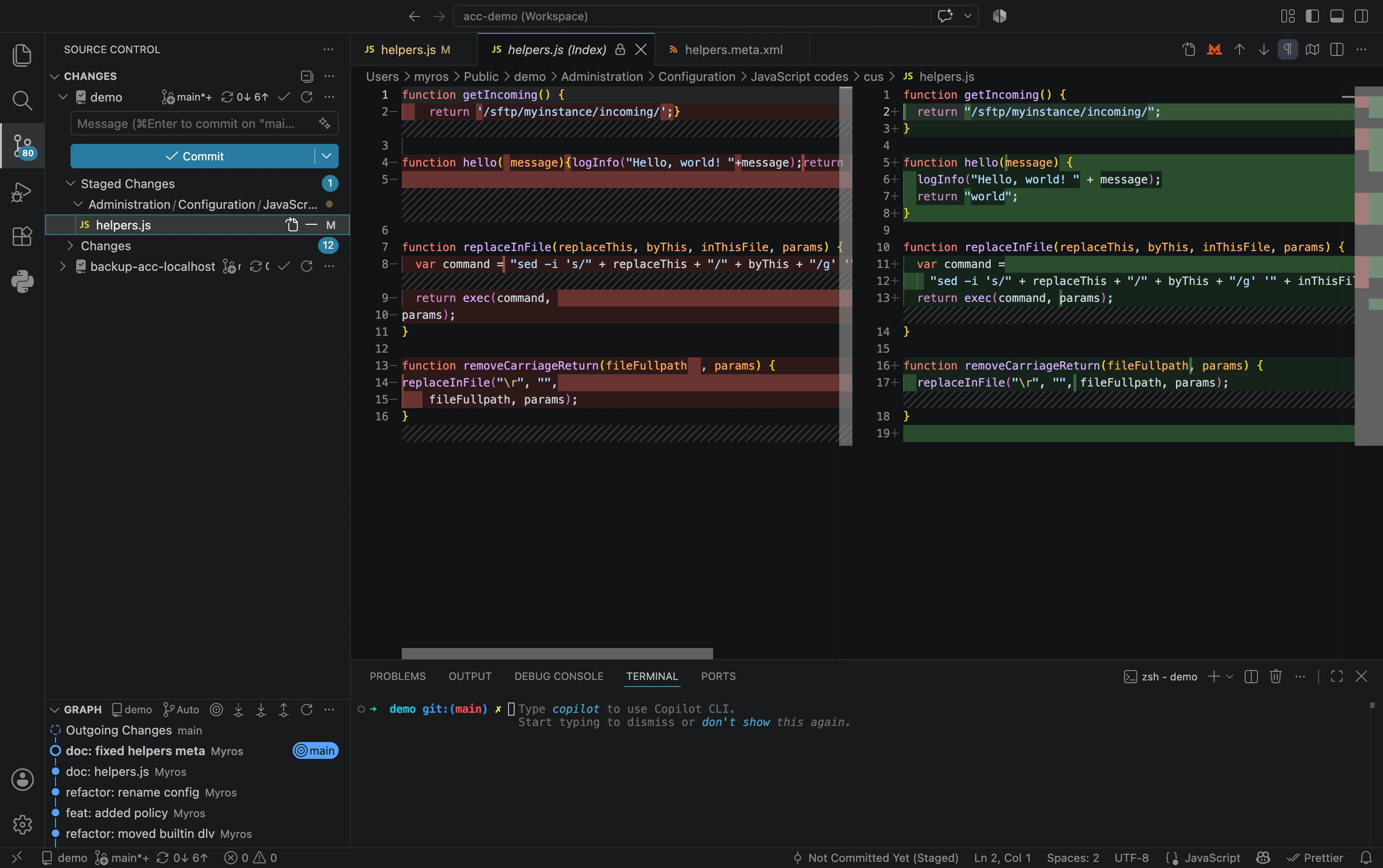
Use acc instance pull to bring your codes to VS Code, then run prettier to enforce consistent style and prepare Git versioning. Find below what you will be achieving: the JavaScript code has new lines added, double-quotes only, 2 spaces for indentation, 1 space for delimiter.
Preparation
Requirements: Node.js installed, acc installed and authenticated, first acc instance pull run. Refer to Getting started.
Any IDE installed, with VS Code recommended by Adobe for its extensions & AI assistants integrations (developer.adobe.com).
Walkthrough
You may either format a single file via VS Code, or mass edit many files with the terminal and prettier.config.mjs within VS Code.
Format a single file
- Open VS Code and navigate to
Administration/Configuration/JavaScript codes - Open any
.jsfile - Install the Prettier - Code formatter extension: View → Extensions → search “Prettier” → Install
- Format the file:
Ctrl+Shift+P→Format Document(or shortcutCtrl+Shift+F)
Prettier rewrites the file: consistent indentation, single quotes, trailing commas. No configuration needed for a single file.
Example of a few Adobe Campaign helpers functions, pulled and decomposed by acc and formatted by Prettier:
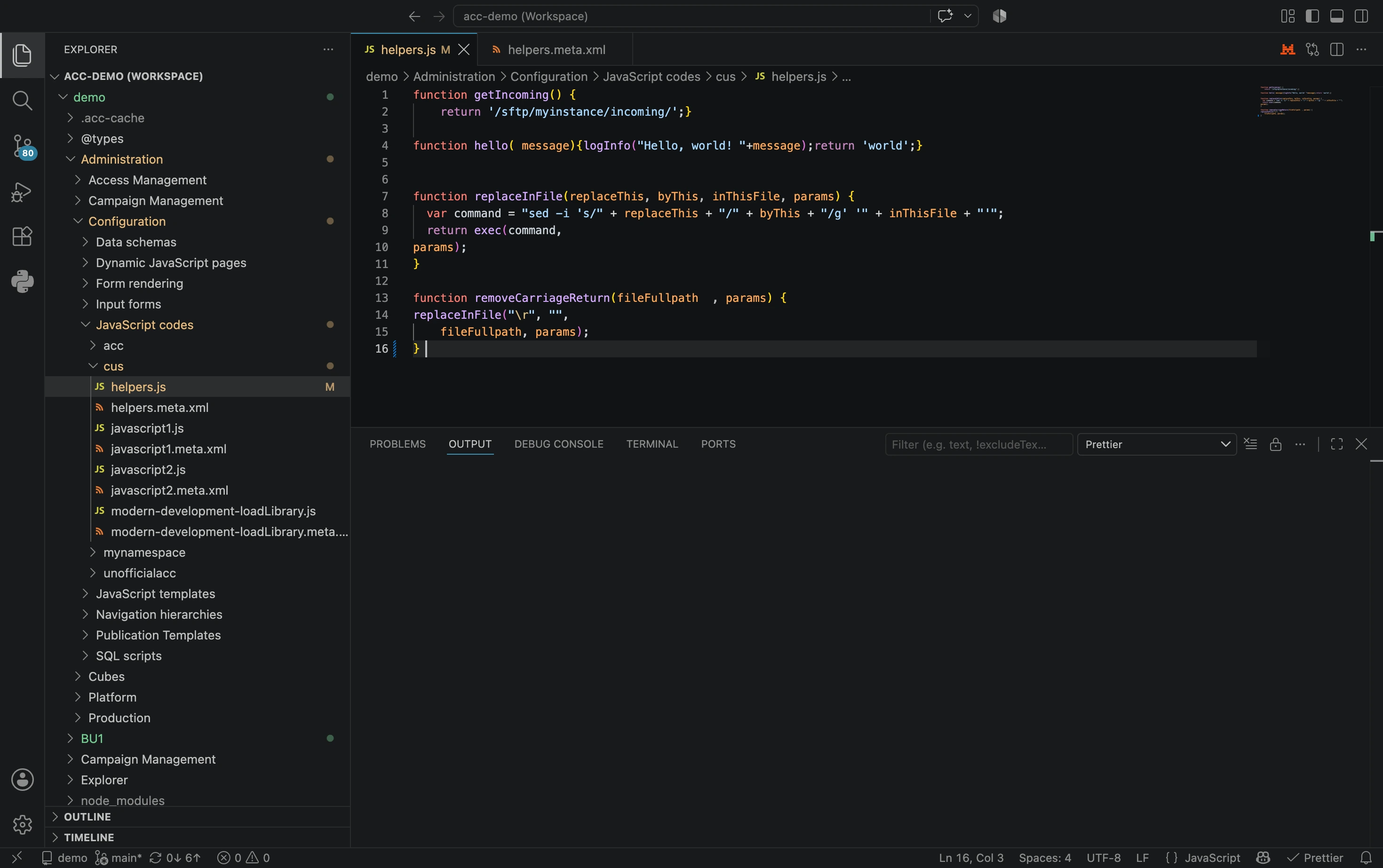 Before
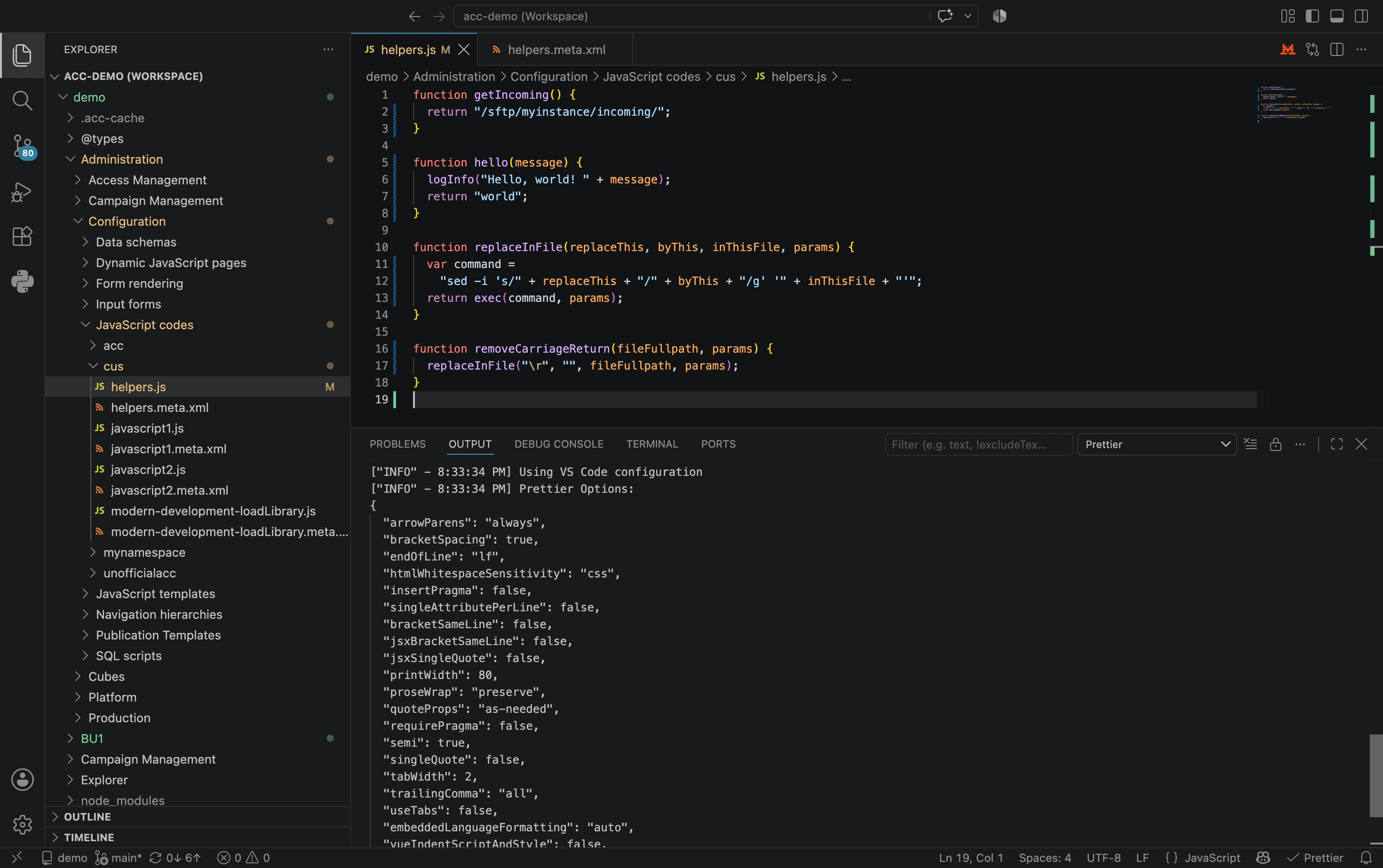 After
After
prettier.config.mjs
The previous method is great when working on a single file, but as you will regularly pull many code files with acc instance pull, we need better tools.
To format the entire project from the command line, let’s set up prettier once and run it on every pull.
1. Install prettier with XML support (only needed once):
npm install --save-dev prettier @prettier/plugin-xml
2. Create a prettier.config.mjs configuration file (only needed once):
/**
 * Garantees consistent formatting of Adobe Campaign code pulled with `acc` with Prettier.
 *
 * `acc instance pull` writes what the SOAP call returned, so a .meta.xml is a
 * single line. Formatting is what makes it ready for git & edition.
 *
 * @version 2.0.0
 * @author myrosblog.com
 * @see https://myrosblog.com/adobe-campaign/acc-cli/qa-prettier
 */
export default {
  endOfLine: "auto", // the instance may run on Windows or on Linux. "auto" keeps existing line endings
  plugins: ["@prettier/plugin-xml"], // mandatory to format xml files
  overrides: [
    // XML config
    {
      files: ["*.meta.xml"],
      options: {
        parser: "xml", // uses `@prettier/plugin-xml`
        printWidth: 120, // attributes may be long, 120 gives enough space
        xmlWhitespaceSensitivity: "ignore", // don't preserve whitespace
        xmlSelfClosingSpace: true, // TBD
      },
    },
    // JS config
    {
      files: ["*.js"],
      options: {
        trailingComma: "es5", // allow trailing comma in arrays and objects, but not in function calls
      },
    },
    // Note: no overrides for *.xml as they contain source code
    // i.e. schema & input form must not be formatted
  ],
};
3. Run prettier across all metadata files:
Check first to get a prettier audit:
npx prettier --check .
Then fix all files with prettier:
npx prettier --write .
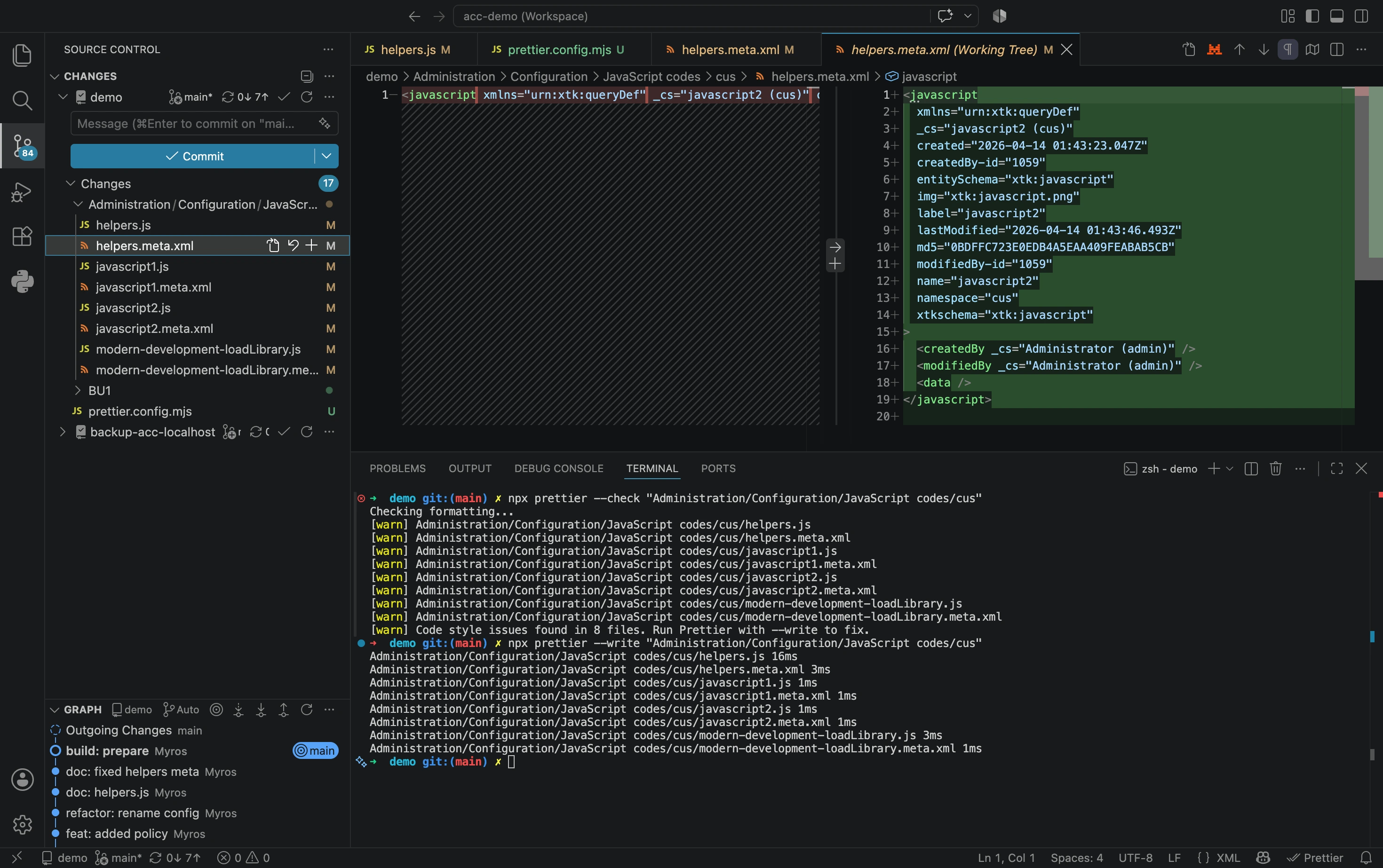
Every JavaScript and XML file in your project is now formatted! Re-run this command after each acc instance pull.
Validation & troubleshooting
npx: command not found
Node.js is not installed or not on your PATH. Follow the troubleshooting procedure.
XML files are not formatted
The @prettier/plugin-xml package is missing. Verify your package.json includes prettier and @prettier/plugin-xml under devDepencies.
Files look the same
After formatting, the file may look the same. 2 causes:
- The file may already be compliant. No action needed
- Or it uses E4X syntax (inline XML in JavaScript) which prettier cannot parse. Refer to Modern development best practices to migrate away from E4X first.
Going further
Restrict prettier
Customize prettier to be executed only in a folder:
npx prettier --write "Administration/Configuration/JavaScript codes/cus"
Or only a specific files in a folder:
npx prettier --write "Administration/Configuration/JavaScript codes/cus/*.js"
Or to files of a specific format in all subfolders:
npx prettier --write "**/*.meta.xml"
Use in CI/CD
You may turn these prettier commands into usual CI/CD commands by adding them to package.json as scripts:
{
  "scripts": {
    "format": "prettier --write .",
    "format:check": "prettier --check ."
  }
}
That can then be called locally or in a CI/CD job with:
npm run format:check
Automatically format file on save
You may automatically format files on save, see digitalocean.com/community.
Next steps
Commit the formatted files to Git for a full audit trail. Refer to Improve Code Traceability with acc CLI and Git.