
Use multiple transitions from a single JavaScript activity in Adobe Campaign. The default Javascript Code activity only has one transition named ok.
Use an Advanced Javascript Code activity to call task.postEvent(task.transitionByName('transitionName')) and route workflow execution based on conditions.
Preparation
Have a workflow ready on any instance (local, staging, production).
Walkthrough
General example
Create an Advanced Javascript Code activity with 2 transitions:
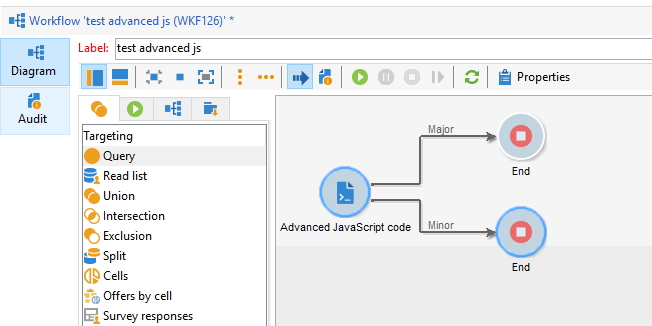
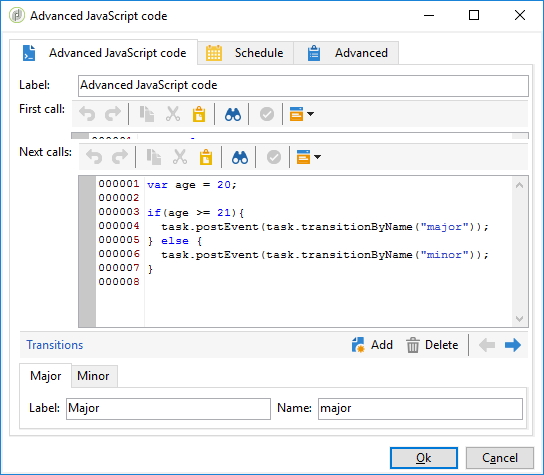
Then, in the code use:
var age = 20;

if (age >= 21) {
  // or whatever condition you need
  task.postEvent(task.transitionByName("major")); // the important part
} else {
  task.postEvent(task.transitionByName("minor")); // the important part
}
Use case: list files in a directory
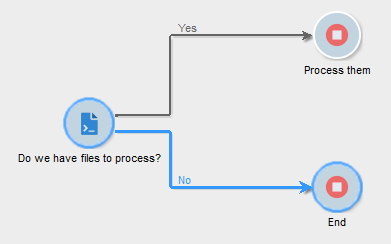
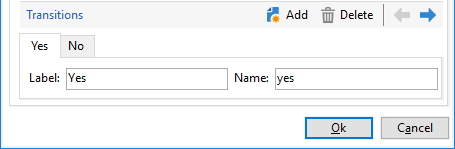
Leverage this activity by listing all files in a directory and executing a transition based on whether files exist:
JavaScript code:
loadLibrary("my:helpers"); // contains function getIncomingDir(), must end with '/'

var dir = new File(getIncomingDir());
var files = dir.list("20180727*_customers_*.xml"); // see https://docs.campaign.adobe.com/doc/AC/en/jsapi/c-File.html

if (files && files.length > 0) {
  task.postEvent(task.transitionByName("yes"));
} else {
  task.postEvent(task.transitionByName("no"));
}
Use this in a scheduled workflow with a file collector that processes files one at a time (check option Stop as soon as a file has been processed):
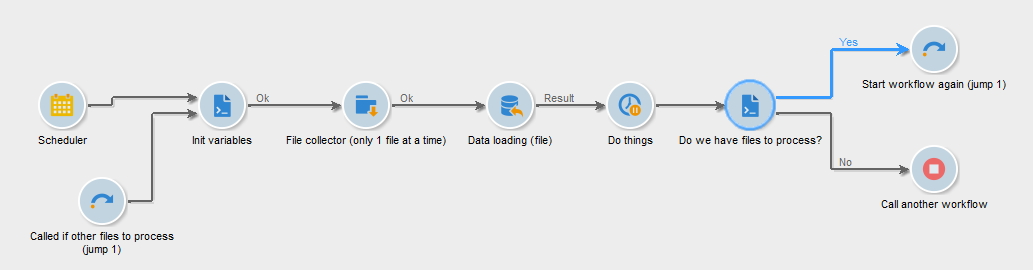
Schedule the workflow daily. Configure your variables vars.directory and vars.fileFilter in the first Javascript activity, then use them in the File collector. The Data Loading activity should use the file specified in the transition, with both jumps defined to 1.
The code to determine if there are still files left to be processed becomes:
var dir = new File(vars.directory);
var files = dir.list(vars.fileFilter);
if(files && files.length > 0){
  for each (var file in files){
    logInfo('- '+file.name);
  }
  task.postEvent(task.transitionByName("yes"));
} else {
  task.postEvent(task.transitionByName("no"));
}