
Seeing “System information disabled due to load higher than 1.0”? Learn how to identify which partition or directory is consuming disk space and free it up with these diagnostic commands.
Preparation
When logging in through SSH:
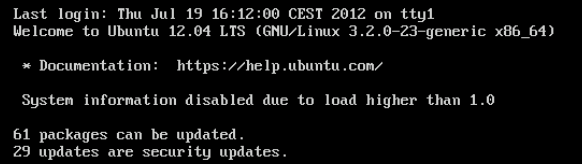
System information disabled due to load higher than 1.0
Walkthrough
GUI version : Space Radar

Install Space Radar on a client machine. On the server, generate a txt sizes file with du -ak
$ du -ak /var/log /usr | gzip -c > /tmp/sizes.txt.gzSee Space Radar repo
CLI version
Which partition is full?
$ df
Filesystem 1K-blocks Used Available Use% Mounted on
udev 991316 0 991316 0% /dev
tmpfs 199908 20936 178972 11% /run
/dev/vda1 10287416 9833040 4196 100% /
tmpfs 999528 0 999528 0% /dev/shm
tmpfs 5120 24 5096 1% /run/lock
tmpfs 999528 0 999528 0% /sys/fs/cgroup
cgmfs 100 0 100 0% /run/cgmanager/fs
tmpfs 199908 0 199908 0% /run/user/1000
Which directory is full?
$ du -h --max-depth=1 / | sort -hr
9,4G /
5,2G /var
2,1G /usr
1,4G /opt
560M /root
158M /lib
57M /boot
49M /home
21M /run
13M /etc
13M /bin
9,9M /sbin
3,9M /lib32
3,1M /tmp
$ du -h --max-depth=2 /home | sort -hr
If you still have some Mb left, ncdu (ncurse disk usage) might help:
$ ncdu
$ ncdu ~
$ sudo ncdu /
# inside ncdu, quit with q
# and go up folder with <backspace>
Common temporary files safe to remove
Delete rotated logs
$ ll /var/log/*.{gz,bz2} # check
$ rm /var/log/*.{gz,bz2} # remove
Going further
- UNIX cheatsheet: filesystem, commands and common utilities
- Create your first OVH Cloud project IaaS: provision a new VPS